How it works
How QRPetal turns a photo into a QR code that scans
No AI and no magic. QRPetal starts with a normal, standards-based QR code and adds only as much black and white as a reader needs, on top of your real photo. Then it checks the result with two different QR readers. Here is exactly what happens.
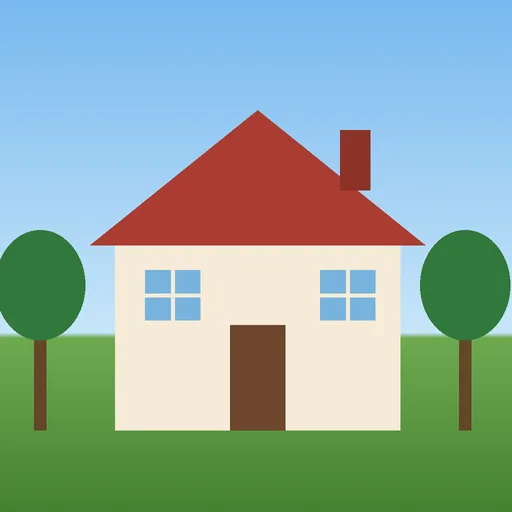
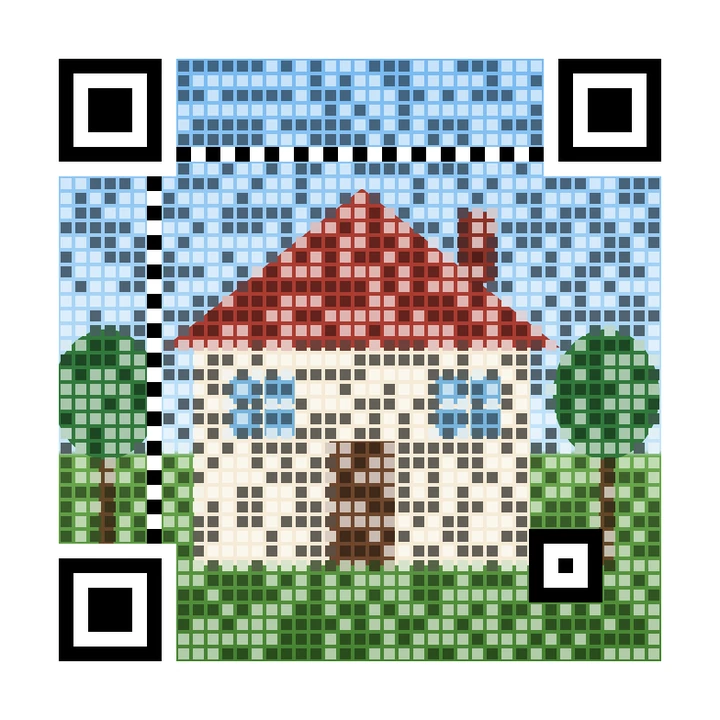
1. Make a normal QR code first
We encode your link or text into a completely standard QR code using the open-sourceSegno library. We always use the strongest error correction level, H, which lets a reader rebuild roughly 30% of the data if parts of the code are hard to read. That spare capacity is what makes room for a photo.
The number of cells in the pattern (the QR "version") depends on how much text you put in. Shorter links give fewer, bigger cells and more room for the photo.
2. Fit the photo into the code area
Your photo is cropped to fill the square (Fill) or padded to fit inside it (Fit), then scaled to exactly the size of the QR area. The white quiet border around the code is left white, because readers need it to find the edges.
3. Protect the parts every reader depends on
Some parts of a QR code are structure, not data. We draw these in full, in pure black and white:
- the three big finder squares in the corners and the white separators around them;
- the dotted timing lines between the finders;
- the smaller alignment squares in larger codes.
The format bits, version bits and the fixed dark cell carry settings the reader needs, so they get exact small marks too, without a heavy block of black near the corner.
4. Repair only the cells that need it
For every remaining data cell, QRPetal looks at the photo underneath. If the photo is already dark where the code needs dark, or light where it needs light, the photo is left untouched. Only when the photo "disagrees" with the code do we draw a small repair mark in the centre of the cell: black or white, in the shape you chose (square, round, soft, diamond, star or your own).
With photo colours turned on, the marks take the local colour of the photo and only shift its brightness, so they blend in instead of looking grey and muddy.
5. The balance slider sizes the repair marks
The "easier to scan ↔ more photo" slider sets how big those repair marks are. At one end a mark fills the whole cell. At the other end it covers about a third of the cell's width, which is the approach of the open-source qrcode-artisticmethod we build on. This changes how much real QR signal is in the image. It is not an opacity effect that only looks different.
6. Check it with two QR readers, and retry if needed
Every finished image is read by two independent decoders: OpenCV's QR detector andZXing (the zxing-cpp library). A code passes only if a reader returnsexactly the text you entered.
If neither reader succeeds, QRPetal makes the repair marks bigger by lowering the photo strength by 15 and tries again, up to four more times. It tells you the value it ended up using. If every attempt fails, you see Might not scan and the image anyway. We never pretend a failing code works.
- Scans great: both readers read it on the first try.
- Scans OK: at least one reader read it, possibly after a retry.
- Might not scan: neither reader could read it.
In our experience ZXing is better at reading the small marks that keep more of the photo, which is why a very photo-heavy code can pass with one reader and not the other. That is exactly the case "Scans OK" describes.
What the check cannot promise
The readers look at a perfect digital file. Your customers will scan a printed copy, through a phone lens, in real light. Printing too small, glossy paper, curved surfaces and dim rooms all make scanning harder. So: print at a sensible size (see our print size guide), and test the real print with a couple of phones before you order hundreds.
Static and editable codes
A static code holds your text directly and never needs our servers. Aneditable code holds a short link we run, which forwards to your real address, so you can change it after printing and count scans. Both are made with the same method. Readwhich one you need.
The method is adapted from qrcode-artistic by Lars Heuer (BSD 3-Clause licence). QRPetal makes the mark size adjustable, protects more structural parts and adds the two-reader check. See our open-source credits.
Technical questions
Why do the three corners stay black and white?
Those big squares are finder patterns. Every QR reader looks for them first to find the code and work out its angle and size. If we let the photo show through them, many phones would not even notice there is a code.
What does the balance slider really change?
It changes the size of the small black and white repair marks inside each QR cell. Toward “more photo” the marks are smaller and more of the photo shows; toward “easier to scan” they are bigger. It is a real change to how much QR signal is in the image, not just a transparency effect.
Why can a code pass the check but fail on my phone?
Our readers see a perfect digital file. Your phone sees a printed copy through a lens, under real light, at an angle. Printing too small, glossy paper, blur and dim light all remove signal. That is why we show “Scans OK” honestly and always recommend a real phone test before a big print run.
Which error correction level do you use?
Always level H, the strongest. It lets a reader recover about 30% of damaged data, which is the room the photo needs.
See it with your own photo
Free, no sign-up needed for your first codes. Every code is checked before you download it.